Network Upgrade (Part 2)

Wow! Two posts in two days 🙂

The second network upgrade was on the WiFi side of things. Again, I am blaming this on Tom Lawrence‘s YouTube channel where he reviewed the Ubiquiti access points. As I noted in Part 1, I had two access points in place – an Netgear EX6200 with OpenWRT and a stock Asus RT-N65U. (The reason why the RT-N65U was using stock firmware is that because of the chipset used, it does not seem that there is any maintained alternative firmware.)

The reason behind the EX6200 running OpenWRT is that I wanted a guest WiFi network for when friends and family come over. Not that I don’t trust my friends and family – I just don’t know if they practice safe computing. Plus, I wanted to implement VLANs.

It may sound “strange” that I have not put in VLANs previously, the fact is that it was an “around to it” task (actually, I did have it in place about 20 years ago but that old Nortel 10 Mbit/s 5-port switch gave up the ghost about 18 years ago). What I have been using was unmanaged* switches connected to router-based ports (e.g., each port was the gateway for their respective subnets). While this works, it does seem consume a lot of cables and switches without much flexibility 🙂

To get the guest WiFi network up-and-running, I needed VLANs because it didn’t seem that there was any easy way have guest access blocked to the home network without VLANs. Or have a separate guest access point (no…). (Yes, the guest WiFi only being able to access the Internet works when, for example, the RT-N65U is running as a router and a WiFi access point, but if you put it in access point mode that ability disappears.)

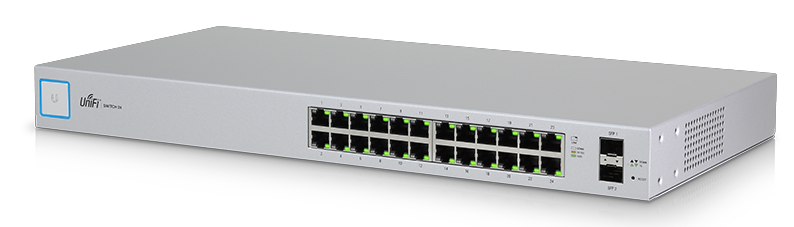
So, back to Tom Lawrence’s reviews of the capabilities of the the Ubiquiti UniFi access points. I was impressed! It works, well professionally. It is not quite as, I guess good is the word, as say a Cisco Meraki system, but it is nowhere near as expensive.

I settled on the UniFi AC AP Lite. The coverage is so good it replaced both the RT-N65U and the EX6200. It was easily mounted on the ceiling plus the PoE meant that I didn’t need to worry about where to plug in that wall wart power adaptor. I am seriously thinking about adding a second AC AP Lite in the future.

But the real icing on the cake is the UniFi Controller software. This can be an appliance with their Cloud Key product but will nicely run on a PC or a server. Or, in a Docker container – jacobalberty has a nice distro on Docker Hub and Crosstalk Solutions has a nice YouTube video tutorial on how to set it up on a Synology NAS Docker container. (See previous posts on my selection of Synology for two of my NASes.) The UniFi Controller does not have to up all the time (but if it isn’t you can’t really make any changes and some features are not available) but since a NAS is likely to be running all the time it is a good fit. I will say that you should watch the full Crosstalk Solutions video where it shows how you can have the configuration saved on the NAS so that when you upgrade the UniFi controller without having to restore your configuration.

I really like the ability to define you networks on the UniFi Controller and it is propagated through all the UniFi devices. Nice and easy software defined networking!

And since it was so nice… Well… Stay tuned for Part 3…

*unmanaged is apparently not a real word. And neither is untrusted (it is distrusted) – but what do I care?

Posted in Uncategorized | Leave a comment

Network Upgrade (Part 1)

As I keep saying, I am not a blogger and I do not post very often or with any regularity. Sometimes I use this blog for posting items that I would like to remember later and had a hard time finding. And, I always try to give credit where credit is due (likely my university science degree background…).

Anyway, about a year ago my SonicWall TZ205W went out of support. It was getting old anyway and many features I would like were not available. Bell Fibe (what used to be Bell Aliant FibreOp – I think FibreOp sounds cooler than Fibe, but anyway…) upgraded me to 500 Mbit/s. The TZ205W could barely push 100 Mbit/s. The neat Sonicwall “published apps,” if you will, either needed ActiveX (what?!?!?!) or Java. Java has security issues (especially outbound) and I don’t need to say anything about ActiveX.

I really like SonicOS – I know that this is a polarising statement – but it worked just fine for me. I liked the SonicWall appliances from the old, used, SoHo 3 I picked up from a local newsgroup to the TZ170 Enhanced to the current TZ205W. I started looking at a new SonicWall but that was pushing the budget limit with the annual maintenance. Plus, adding IDPS, etc. could really slow the system down. I also did not need a wireless version as I had Asus and Netgear access points. Now, I do not need 500+ Mbit/s but is do want it!

One of my staff – who is very open source – mentioned pfSense. It seemed interesting but I would have to procure my own hardware. I like having separate network infrastructure even though I’m a big VMware ESXi fan. I then spent a few months thinking about it…

I then happened on a video on YouTube by Tom Lawrence of Lawrence Technology Services. I like Tom’s videos; they can be a little technical which is great and his howto guides are great. Anyway, after watching a couple of his videos on pfSense I started looking at the Netgate SG-3100. Hmm… It is an appliance – like my old SonicWalls – so I would not have to buy additional hardware and ran pfSense. Looking good. I then went to buy it and… It was out of stock on Amazon (Canada). Dunh!

More thought…

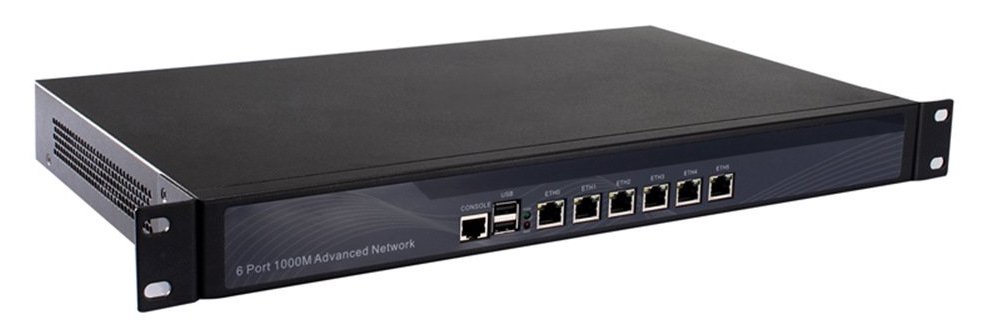
I started researching what others were using for hosting pfSense and noted a few products. I eventually landed on a rack mountable chassis with 6  Intel 82583V GigE interfaces, an Intel I5-2540M with AES-NI support (was going to be required for pfSense 2.5 but no longer; that being said, it does help with OpenVPN offloading), 2 GB RAM and a 32 GB SSD on Amazon (Canada) for about $400 (similar to this one). Now, it did come with pfSense, from China, so that had to go. (Do not use it, do not upgrade it; reinstall from an official download. See this video.)

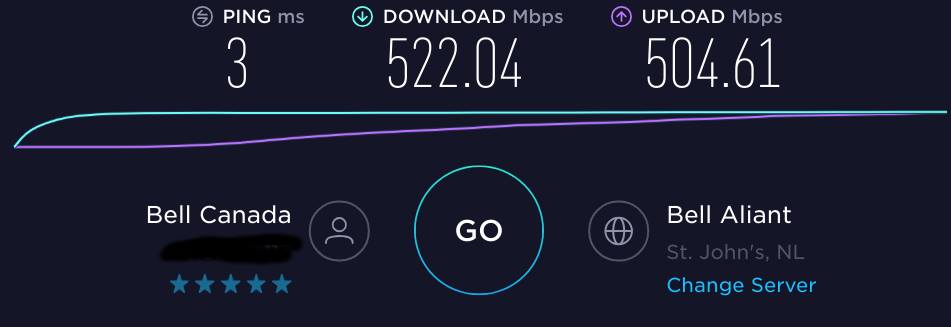
Off with a fresh, clean, checksummed ISO from pfsense.org I installed pfSense 2.4.4. I configured everything basically the same way that I had the old TZ300W (stay tuned for part 2 on what come out of that) and this was the result of my first speed test:

Posted in Uncategorized | Leave a comment

Bowring Park Lit Up for Christmas – 2018 December 9

Just a few pictures of Bowring Park on the night of 2018 December 9… All lit up for Christmas.

Peter Pan Statue in Bowring Park – 2018 December 9
Duck Pond in Bowring Park  – 2018 December 9
Bridge in Bowring Park – 2018 December 9
Duck Pond in Bowring Park – 2018 December 9
Posted in Uncategorized | Leave a comment

Let’s Encrypt, nginx and certbot – a short story

Well, the duration – for me -was not short. It was about two weeks of living in Google. 

Here’s the setup: I have a couple of servers in my DMZ that I want share out. Some places do not let web traffic out on non-standard ports (i.e., TCP 80 and 443) so I wanted to share out the two servers on my single IP address. As I like to try different things, I decided on using nginx instead of Apache HTTPD. (I like both – some things in nginx seem a little more organized…) Setting up nginx as a reverse proxy – no problem at all! 

Of course, I am – within reason, see my post on HTTPS everywhere – in agreement with encryption. Thus, Let’s Encrypt was next on the list. With my other static web servers (using Apache HTTPD) no problem; good old certbot is brain dead easy.

Not with a reverse proxy (I also tried Apache HTTPD without luck) – at least for me. Repeated 404 errors… “not authorized”… Arrrgggg… Google university was of no help – all the same basic instructions. Same error. 

Until… 

I found this post on StackExchange by ph4r05. Basically, I had to use a manual verification with the manual plugin. This meant adding a TXT record to my DNS server. 

To do this:

certbot -d YOUR_FQDN_SERVER_NAME --manual --preferred-challenges dns certonly

This will give the response:

Please deploy a DNS TXT record under the name
_acme-challenge.YOUR_FQDN_SERVER_NAME with the following value:

667drNmQL3vX6bu8YZlgy0wKNBlCny8yrjF1lSaUndc

Once this is deployed,
Press ENTER to continue

Of course, the value will change for you (and it will change each time you do a manual validation). Once you get that key you will need to go into your (publicly accessible!) DNS server with a TXT record of:

_acme-challenge.YOUR_FQDN_SERVER_NAME TXT 667drNmQL3vX6bu8YZlgy0wKNBlCny8yrjF1lSaUndc

(or however your DNS server enter it).

You then have to wait until Google’s name servers (8.8.8.8 or 8.8.4.4) updates. This took under 5 minutes for me. Once that is done (you can check with the linux dig command for propagation) hit ENTER. You will then have to put in your nginx site config the paths to the Let’s Encrypt certificates;e.g.,:

/etc/letsencrypt/live/YOUR_SITE_NAME/fullchain.pem/
/etc/letsencrypt/live/YOUR_SITE_NAME/pivkey.pem

Restart nginx – and Bob’s your uncle.

Hopefully, someone else will find this post and it will save some time.

Posted in Uncategorized | Leave a comment

Ubuntu 16.04 and MySQL Upgrades…

So, I’ve been having this issue with upgrading MySQL 5.7 on a Ubuntu 16.04 server. It kept erroring out. Even uninstalling MySQL and reinstalling it did not help. Until I found this post by iqbal_cs:

root@iqbal: mysql -u root -p
Enter password:
mysql> GRANT ALL PRIVILEGES ON *.* TO 'debian-sys-maint'@'localhost' IDENTIFIED BY '<your password>';
ERROR 1819 (HY000): Your password does not satisfy the current policy requirements

If the error(1819) is raised, type this on the mysql terminal

mysql> uninstall plugin validate_password;

Then restart mysql: systemctl restart mysql

Finally

apt install -f

to fix broken dependencies

If error continues, enter again to mysql terminal, login: type this:

mysql> GRANT ALL PRIVILEGES ON *.* TO 'debian-sys-maint'@'localhost' IDENTIFIED BY '<your password>'

apt -f install for the last time.

Posted in Uncategorized | Leave a comment

HTTPS Everwhere is a good thing… Sort of… 

One of the “big” things of late is the push to have all websites use HTTPS to encrypt traffic to websites. As Stefan Stienne of The Verge noted in the may May 2018 article Google Chrome is removing the secure indicator from HTTPS sites in September:

Here’s a quick HTTPS refresher course: it’s a more secure 
version of HTTP, acting as a secure communication 
protocol for users and websites, making it harder for 
eavesdroppers to snoop on your packets. Your data is 
kept secure from third parties, so most modern sites are 
employing this technology, using Transport Layer 
Security (TLS) the underlying tech behind HTTPS, to do this.

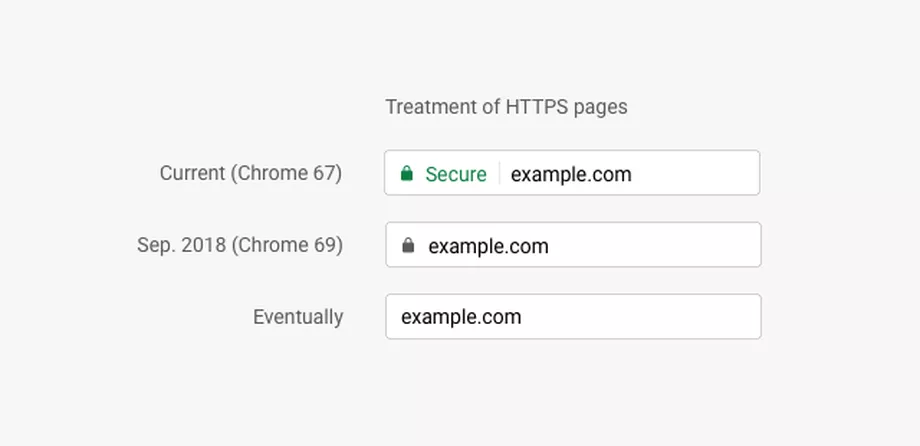
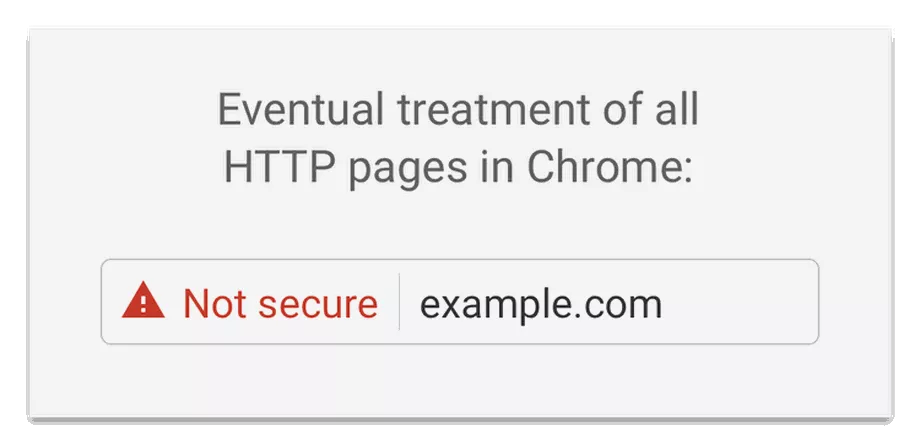
What this means is that the URL bar (or omnibar, or whatever a web browser calls it) will change (using Google Chrome as the example):

Eventually it will be:

In on sense, this is somewhat agreeable. It will ensure that no one can easily snoop what is going back and forth when you connect to a website. That being said, nothing will stop an organisation breaking the TLS chain using a proxy and installing their valid SSL certificate in your browser’s certificate store. Since this certificate is self-signed, the client would receive an SSL warning message. Once the client installs the proxy’s certificate to let the browser trust the certificate, browsing websites with HTTPS will look normal and have the green padlock or no warning in the future (secure connection) in the URL bar.  This works by:

client <===HTTPS===> proxy <===HTTPS===> server
             ^                   ^
    proxy certificate      server certificate

So, unless you actually go and validate the certificate source you can still have your traffic sniffed. Many companies use SSL proxies to ensure that confidential information is not being leaked (assuming SSL decryption is being used for moral, lawful purposes). Of course I, for one, would not be surprised if something like the “Great Firewall of China” is not doing this (of course, law – and culture in some ways – comes into play here, too).

Of course, DNS servers will still know where you are going – you need to resolve an address to an IP address.

Secure Does Not Mean Trusted

All this does not mean that you should trust a website just because communications are encrypted! Anyone can get a Domain Validated (DV) certificate.That’s the way that Let’s Encrypt works. Now, I am not knocking Let’s Encrypt – I use it myself (see URL bar above).

This article on the types of certificates. Higher level certificates such as Organisation Validation (OV) and Extended Validation (EV) are a help. OV has more human intervention in the Certificate Authority (CA) validating that an actual business/organisation is reputable. This puts the organisation’s name in the certificate information. This costs money. EV certificates includes the most effort in validating a business/organisation reputation including extra documentation (See EV SSL Requirements). This costs more money and time. Chrome used to include the organisation’s name in the URL bar (it stopped doing so – I haven’t spent time finding out when but it was before Chrome 66) but Firefox, Internet Explorer and Microsoft Edge still do.

The problem is:

HTTPS ≠ TRUSTED

The website your are connecting must be trusted. Is the site trying to steal your credit card information? Is the site trying to get your personal information for spear phishing purposes? Just because the connection is encrypted (and may be doing so for other purposes than trying to make you think that their site is “trusted” – they may also be encrypting traffic to keep people from knowing what they are up to) does not mean you should trust the site!

That responsibility is up to youdear reader. You need to determine if the site you are entering your credit card or other information is trustworthy. This means, for Chrome at least, you need to look at the certificate and determine if it is truly trustworthy. You need to look at the URL and make sure that it is really the website you are intending to visit – making sure that mybank.com isn’t actually mybonk.com.

Summing Up

Some of the good things about HTTPS everywhere is that it can (not will) help in keeping others from sniffing credit card or other personal information from your connection. Google’s eventual change of not identifying HTTPS and highlighting HTTP should help people understand when their communications can be read by other (or, maybe not so easily read is more accurate).

All that said the trust, the reputation, of where you are connecting is still up to you.

Posted in Uncategorized | Leave a comment

VMware Workstation 12 Pro on Linux Mint 18.3 Sylvia

Mental note 🙂

VMware Workstation 12 Pro on Linux Mint 18.3 Sylvia does not install correctly. This apparently is not a Mint issue so much as kernel 4.13.x issue.

Spent some time in Google University trying to figure it out (maybe I AM getting old… 🙁 ).

Anyway, the solution can be found here: https://communities.vmware.com/message/2745542#2745542

ukos0vm provides the perfect fix:

The scripts on https://github.com/mkubecek/vmware-host-modules are already very straight forward. If it is not simple enough, try the following script from my gist:

cd ~/Downloads

wget https://gist.githubusercontent.com/ukos-git/e656c47025dd55b4836a980a34811637/raw/21533798c550a12ba6bf2feedf63f24324ed3713/patch-vmware12.sh

sudo bash ./patch-vmware12.sh

Thank you ukos0vm!

Posted in Uncategorized | Leave a comment

Time Waits for No One

It is true: Time waits for no one.

Synology DSs211j

Synology DS211j

My old Synology DS211j that I bought back in 2011 finally showed that it is in its not-so-golden years. With every firmware upgrade the DS211j was becoming slower and slower. File shares were taking minutes to populate, DNS was slow responding – or not at all, logins to the web page were slow – or did not complete. Even ssh connections would time out. The old Marvell Kirkwood 88F6281 at 1.2 GHz. It only has 128 MB of RAM. That is not a lot of horsepower to run the latest Synology DSM 6.1 firmware. In fact, I seem to recall that at 6.0 (or one of the subminor versions) there was a warning that it might cause slowness. Well, there is slowness and then there is s l o w n e s s.

Something had to be done. Both my loving wife and son were not so understanding when they could not connect to Netflix or Youtube (DNS lookups were timing out) and my wife was justifiably concerned when she could not access almost 7 years of digital photos. Quickly (well, not so quick – it took forever) backups to external USB hard disks and to a FreeNAS VM I had set up on my ESXi server were executed.

I have a QNAP NAS that I use for streaming digital media – it seems to do that better than the DS211j, but that might be a result of being a few years younger – but QNAP does not have all of the packages that Synology has; namely: BIND (DNS), etc. Some may suggest looking at other vendors but, in my opinion, Synology’s DSM is one of the best for SOHO (or geek-minded) solutions.

But which Synology model?

Remember, this was basically an “emergency” purchase so it was not like funds had been squirrelled away. I also needed new disks as the 1 TB are somewhat small) even though the “big” stuff like movies and music are on the QNAP) and a few years old. So this was not only the replacement of the NAS but the storage as well.

Synology DS216+II

Synology DS216+II

After doing a few days of reviews and looking at prices the DS216+II was my choice with two new WD Red 2TB drives. Some will ask why not 3 or 4 TB drives but remember: this was not a planned purchase so the budget was tight.

The 216+II has much more horsepower. It has an Intel Celeron N3060 64-bit dual-core at 1.6 GHz with burst up to 2.48 GHz. It as 1 GB of RAM. The RAM is technically non-upgradeable but there are sites that document the process of how to upgrade the RAM to 4 GB. It is not that the RAM is soldered to the motherboard, it is standard laptop RAM, but it is buried under everything so that entails a more-or-less full disassembly of the NAS. NOTE: This will void your warranty!

I can also use an external drive array such as the DX513 using the eSATA port to increase space if I need it. Some would say that the DS716+II would be a better option as it would let me span the RAID array across the external enclosure (more RAM, faster CPU, too). But, in thinking about it, this is an eSATA connection and I would not want to trust that to spanning the array. Lose the connection and bad things can happen.

Okay, that was decided. Orders placed. Now, how to migrate the data?

Google is not always your friend; the search results kept returning how to migrate for DSM 5.x. DSM 6.x is the current version. After some searches on Synology’s site I found the information. (It is here if anyone is looking: How to migrate between Synology NAS (DSM 6.0 and later)). The interesting thing is that it allows you to migrate architectures by swapping the drives to the new NAS – ARM-to-x64. However, after thinking about it that is not the way I decided to go.

Why?

  • The DS211j has had firmware updates for the last six years; what “junk” was lying around is a big question
  • I have modified the configuration files over the past six years so there could be some “strange” things happening during the migration
  • I had new disks – so why would I want to migrate then upgrade the volumes?
  • I wanted to use the new Btrfs file system and I could not apparently do that with a migration
  • I wanted to have the DS211j available in case something went wrong (despite backups to USB hard drives and the FreeNAS storage – which was (is still) taking up VMware VM space

How?

I had a couple of options:

  • File copy – this likely would have been not only slow but there is not enough checking of file integrity that I was willing to chance
  • Backup and restore – Synology’s HyperBackup is a pretty good product and, obviously, is able backup between Synology NASes. Plus, it adds checksums.

Backup and restore it was. It took over 30 hours for the backup (from the DS211j to the DS216+II). This is likely because of the older hardware encryption chip on the DS211j and that it just could not pump the data quickly enough through the gigabit Enternet port. Restore, on the other hand, took all of 50 minutes.

Once that was done I re-created the shares and permissions, shutdown the DS211j, changed the server name and IP on the DS216+II to the old DS211j’s, and restarted…

And everything seems to work! And it is fast. The best example I can give (for us “old folks”) is the performance increase we saw when moving from a Pentium 166 to a Pentium II 350. Simply amazing!

The next steps are to let the DS211j sit on the shelf for a couple of weeks to make sure that nothing is missed, set up the backups again, etc.

What to do with the DS211j? I am not sure a this point. I am considering flattening the drives and do a fresh install of DSM 6.1 and only have the DNS server running on it. (Why an internal DNS not to mention two? Well, once you start counting up the number of network devices – I have over 40 devices – that is what DNS (and DHCP) are for!)

 

Posted in Uncategorized | Leave a comment

Oh, its the 24th of May….

And I’m glad that I’m indoors for the day…

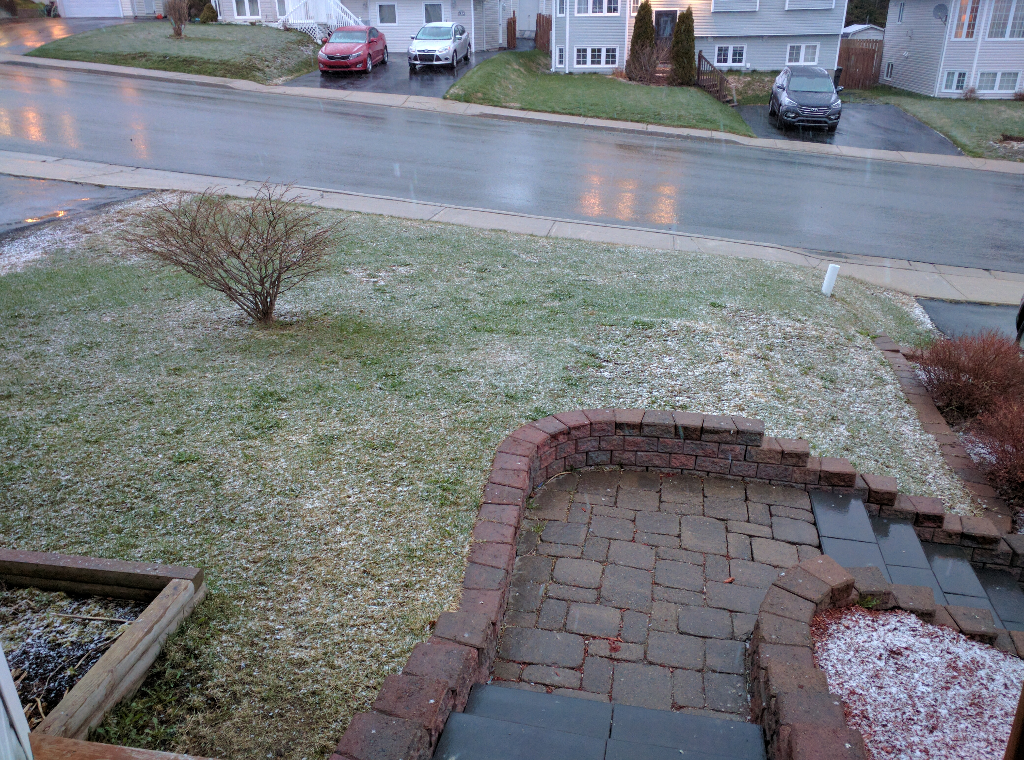
Not the first 24th of May Weekend with snow but that still doesn’t sugar coat it…

When the snow first started to stay…

Snow Starting on May 20, 8:35 PM

Snow Starting on May 20, 8:35 PM


And we woke up to this:

Snow on May 21st at 9:45 AM

Snow on May 21st at 9:45 AM

Posted in Uncategorized | Leave a comment

Let’s Encrypt – Doing Dumb Things…

Problem:

I moved servers – copying the Apache configuration and /etc/letsencrypt to the new server. Everything went well but now when I have to renew I cannot. I get all types of errors. (Yes, I KNOW that I did a really dumb thing forgetting to copy my backups as well :cry:)

Solution:

Here is what I had to do – much of it is similar to getting the “starter” Apache 2 SSL set up

  • You need to create the self-signed certificates first (e.g. “sudo openssl req -x509 -nodes -days 365 -newkey rsa:2048 -keyout /etc/ssl/private/apache-selfsigned.key -out /etc/ssl/certs/apache-selfsigned.crt”)
  • Once that is done, you need to create the SSL vhost files (assuming you are using virtual hosts – I am) using the self-signed certificates. You can (I did, at least) use the same self-signed certificate for each vhost. The important thing to note here is that letsencrypt must have apache running ssl already. It will not work if apache is not up and/or there are no ssl sites. (This drove me mad for a couple of hours!)
  • Once this is done you can back up your /etc/letsencrypt directory (you could probably blow it away but you are probably paranoid now :slight_smile: )
  • Restart apache (e.g., apache2ctl restart – by this time I will terminate with extreme prejustice :imp: )
  • Check to see if your sites are up and running. Your web browser probably will give you an insecure warning. That is okay – we will be putting real certificates in place; you just need to ensure that apache is working with ssl.
  • Run letsencrypt –apache ya-da, ya-da, ya-da
  • You might have to restart apache manually after it finishes but that’s okay

Now, don’t forget to:
1. Back up you letsencrypt directory (I am really paranoid now :confounded:)
2. Back up your apache config files (Yes, I am really paranoid now)

One more thing:

  • Make sure that the renewals are working (e.g., letsencrypt renew)
  • Put that in your cron jobs so that it renews each month


Posted in Uncategorized | Leave a comment